Getting started
Generate images, audio and video with Snowpixel. Go straight to the API to build an integration, or try a preset in the Playground first.
In this guide
Integrate with the API
Follow the API quickstart for authentication, a first request and polling for outputs. It includes runnable examples and the current API contract.
API Keys is a top-level item in the app’s navigation. On a narrow screen, open Navigate to find it. Keep keys in your server environment; never put them in browser code or screenshots.
The Playground runs with your signed-in session, so you do not need to create an API key to try it.
Try a preset in the Playground
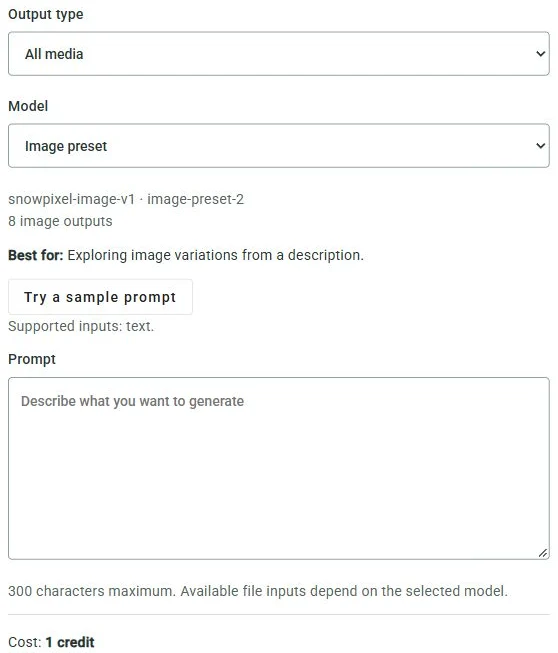
Open the Playground in your signed-in account. For a first API experiment, use API experiment · No project under Generation context.
- Choose your output. Under Model, select Image preset, Audio preset or Video preset. Output type filters the list. Read Supported inputs for the selected preset.
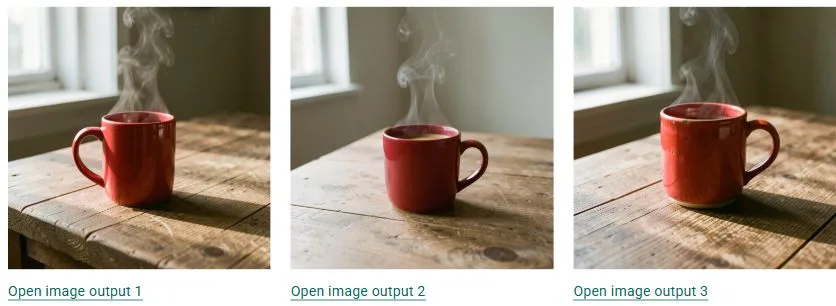
- Describe what you want. Enter a Prompt, or use Try a sample prompt as a starting point. For an image, try “A red ceramic mug on a plain wooden table in soft daylight.”
- Check the cost, then run. Review the displayed Cost in credits for your current selection and inputs. When you are ready to spend those credits, click Run once.
View Result. Return through Requests.
After running, view the status and outputs in Result. On a narrow screen, switch from Inputs to Result.
To find previous outputs, open Requests from the main navigation. Select a request’s status to open Request details, then use its output links. The Source filter includes API (including Playground) and App.
If submission or status is uncertain, check Requests before running again.
When you want to use a reference image
Open More → Creative tools. This opens the Playground in project context. With a compatible selection, such as the Image preset checked here, Reference image (optional) appears beneath the prompt.
Check Supported inputs before choosing a file: not every preset or context accepts images. App reference-image controls do not imply the same input is available through the public API; follow the API model documentation for your integration.
